A schematic and PCB editor for KiCad, made for touch and Apple Pencil. Draw the schematic, route the board, run ERC and DRC, and export Gerbers. It saves the project’s own .kicad_sch and .kicad_pcb files the way KiCad does, so you can open them on your desktop and carry on.
Free to download. Try every feature on the sample designs.
What it does
The schematic, the board, the rule checks, the parts and the files for the fab, in one app on the device you already carry.
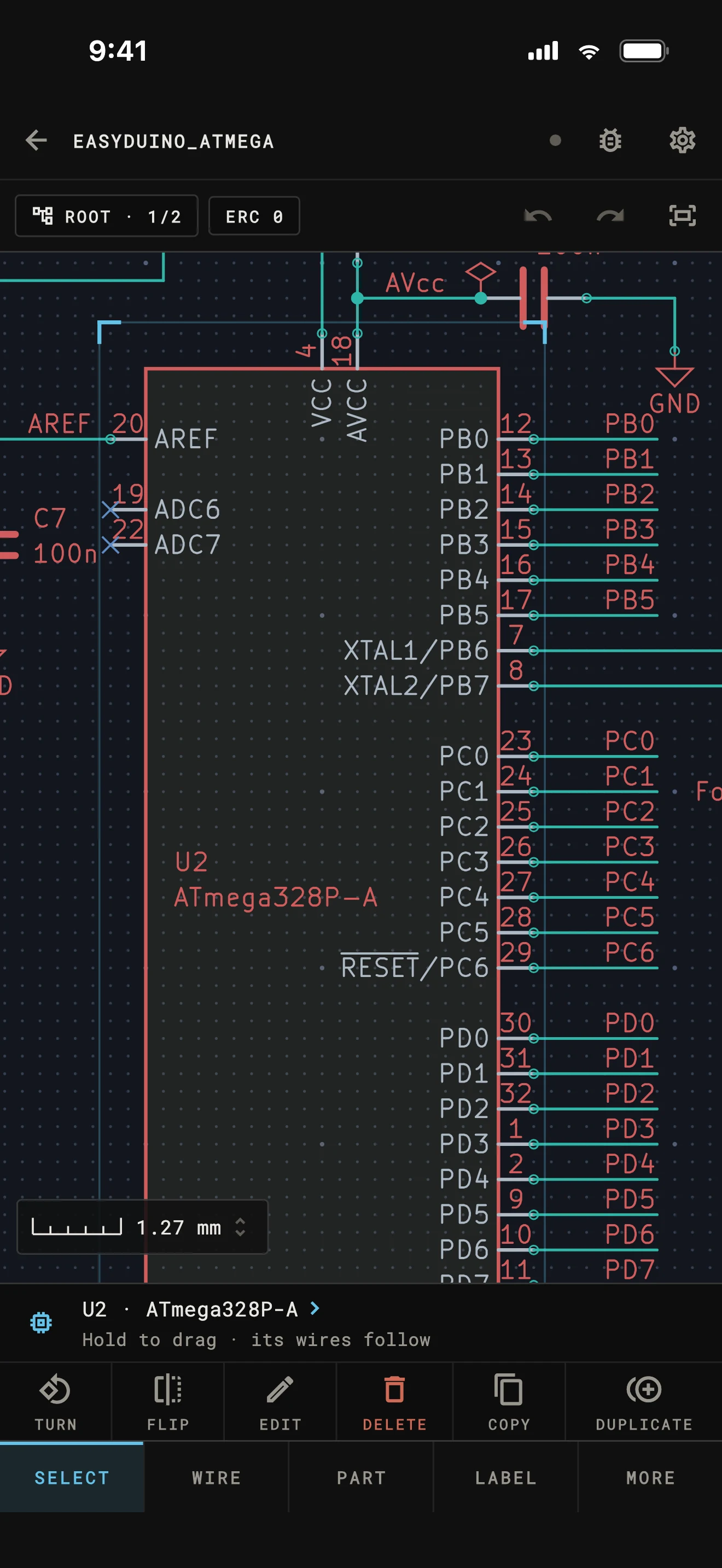
Place parts from KiCad’s libraries, wire them, and add labels, power symbols, buses and hierarchical sheets. The electrical rules check finds what KiCad’s finds.
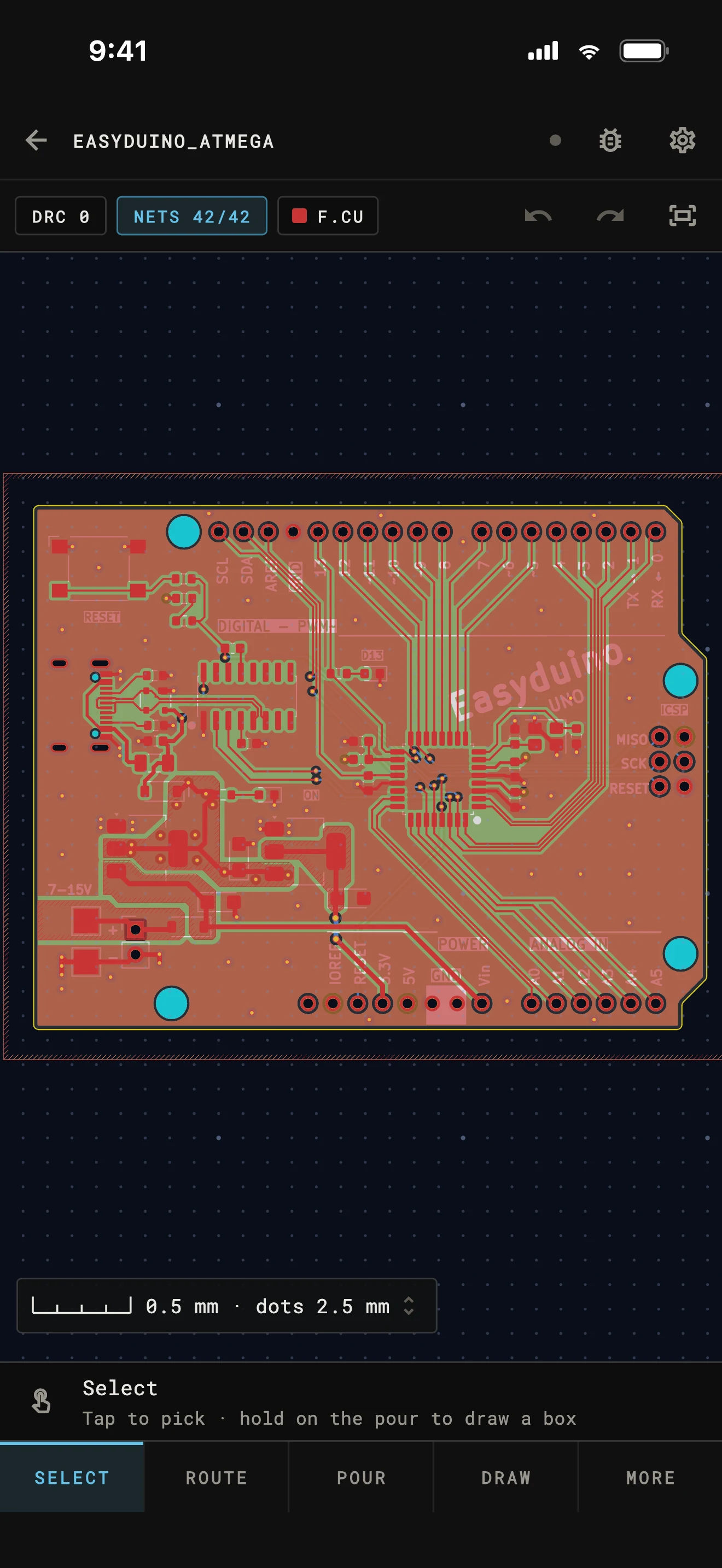
Route around obstacles, shove other tracks aside or lay free-angle legs. Differential pairs, length tuning, vias, copper pours and teardrops, with a design rule check that runs as you edit.
The Pencil picks the exact pad or track under its tip, shows what it would pick before it touches, and drags without a hold. Squeeze it for the tools at the tip.
KiCad’s standard libraries are built in. Install KiCad add-ons, import a part downloaded from Mouser or SnapEDA, or draw your own in the symbol and footprint editors.
Gerbers, drill files, the BOM, position files and PDFs of the schematic and board, zipped with the settings JLCPCB, PCBWay or OSH Park ask for.
Clone from GitHub, GitLab, Gitea, Forgejo or Codeberg, then commit and push from the app. History shows what each commit changed on the board and the schematic.
KiCad files
There is nothing to import or convert. The editor opens the project folder and writes the files KiCad would write, in the same order and the same format. KiCad opens them as its own, and a commit from your iPad diffs like one from your desktop.
Measured against KiCad 10’s own output on real open-source projects. Projects from KiCad 8 to 10 keep the file format they were saved in, and a KiCad 8 or 9 project upgrades to KiCad 10’s when you choose. KiCad 6 and 7 projects upgrade to KiCad 10’s format in one tap.
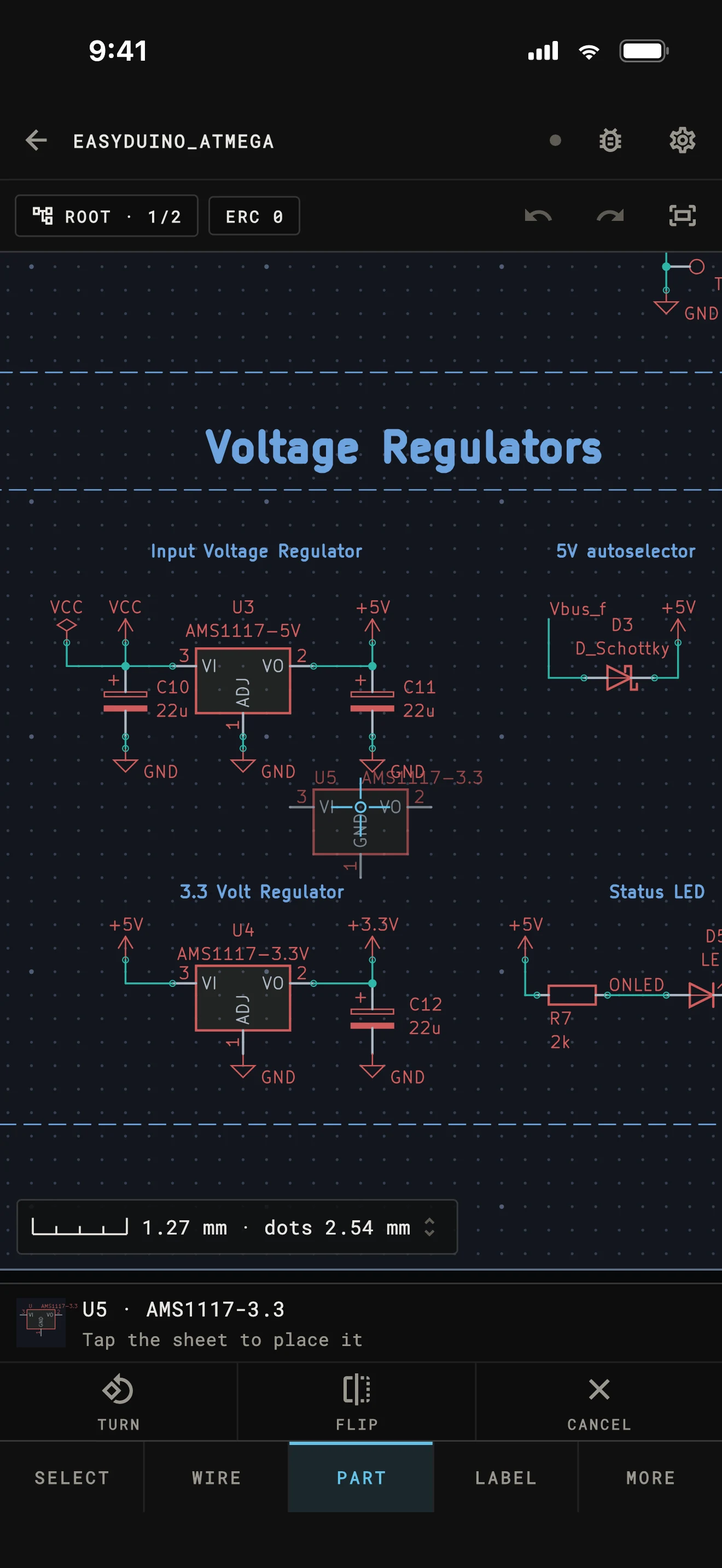
Schematic
Search KiCad’s library and place a part: it arrives with the next free reference and the footprint the library gives it. Drag wires from pin to pin. Junctions, buses, labels and power symbols follow KiCad’s rules, so the netlist is the one KiCad would make.
Tap a part for its keys: turn, flip, edit, delete, copy. The properties sheet edits every field KiCad keeps, and Schematic Setup has every page of KiCad’s.
PCB layout
Place footprints, route and tune tracks, pour copper and draw the outline. Update PCB from Schematic lists every change before it brings the netlist across.
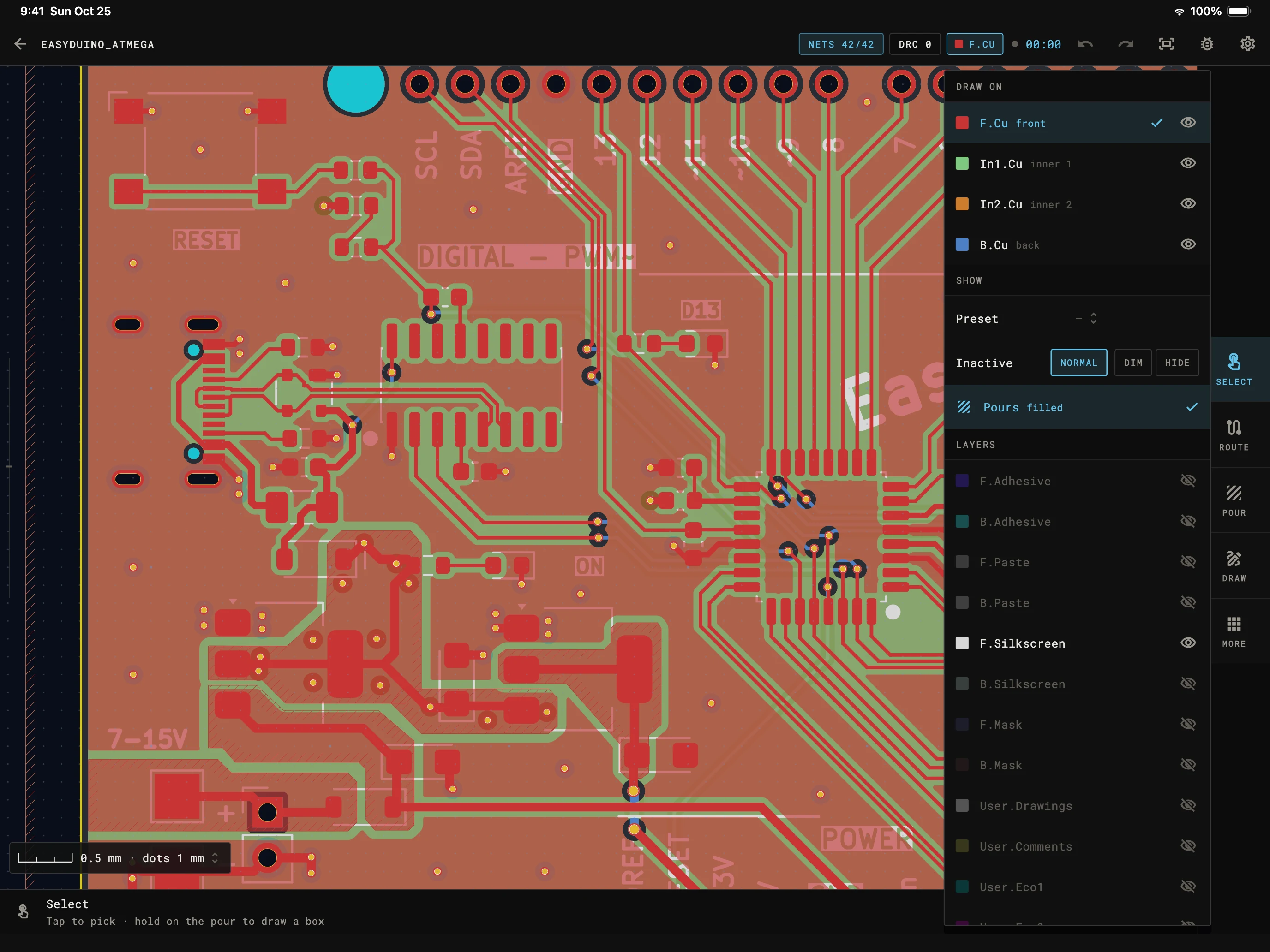
Walk around obstacles, shove tracks aside, or lay free-angle legs. Corners at 45° or 90°, plain or rounded, and arcs.
Route a differential pair as one, and tune length and skew to a target in millimeters or picoseconds.
Copper zones that fill as KiCad fills them, rule areas, teardrops, and through, blind and micro vias.
Stackup, net classes, design rules and pre-defined sizes: every page of KiCad's Board Setup, saved where KiCad keeps it.
iPad and Apple Pencil
Fingers pan and zoom; the Pencil picks, drags and draws. Turn on the iPad’s Only Draw with Apple Pencil and a resting hand never edits anything.
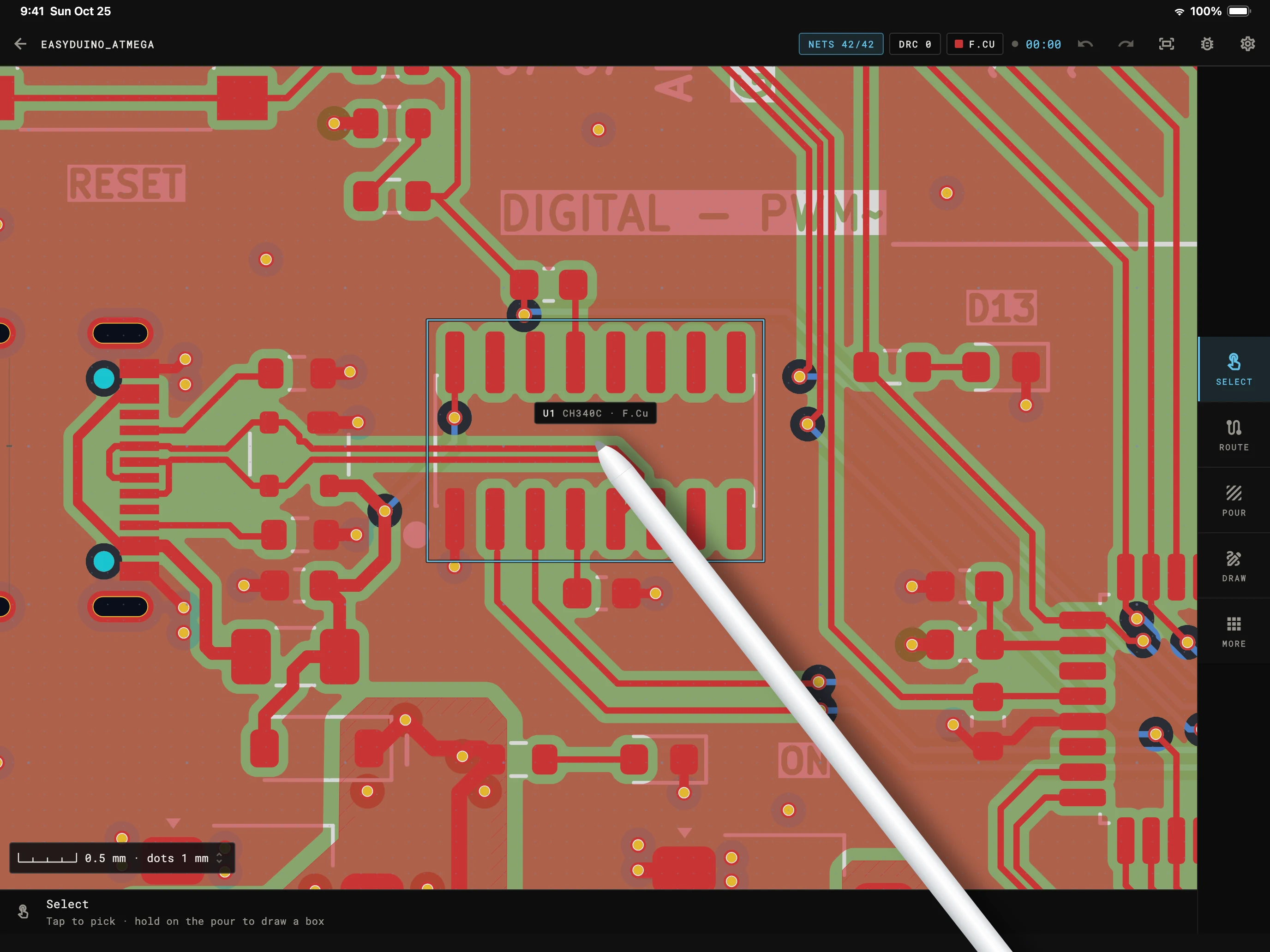
Hovering: the part under the tip is outlined and named.
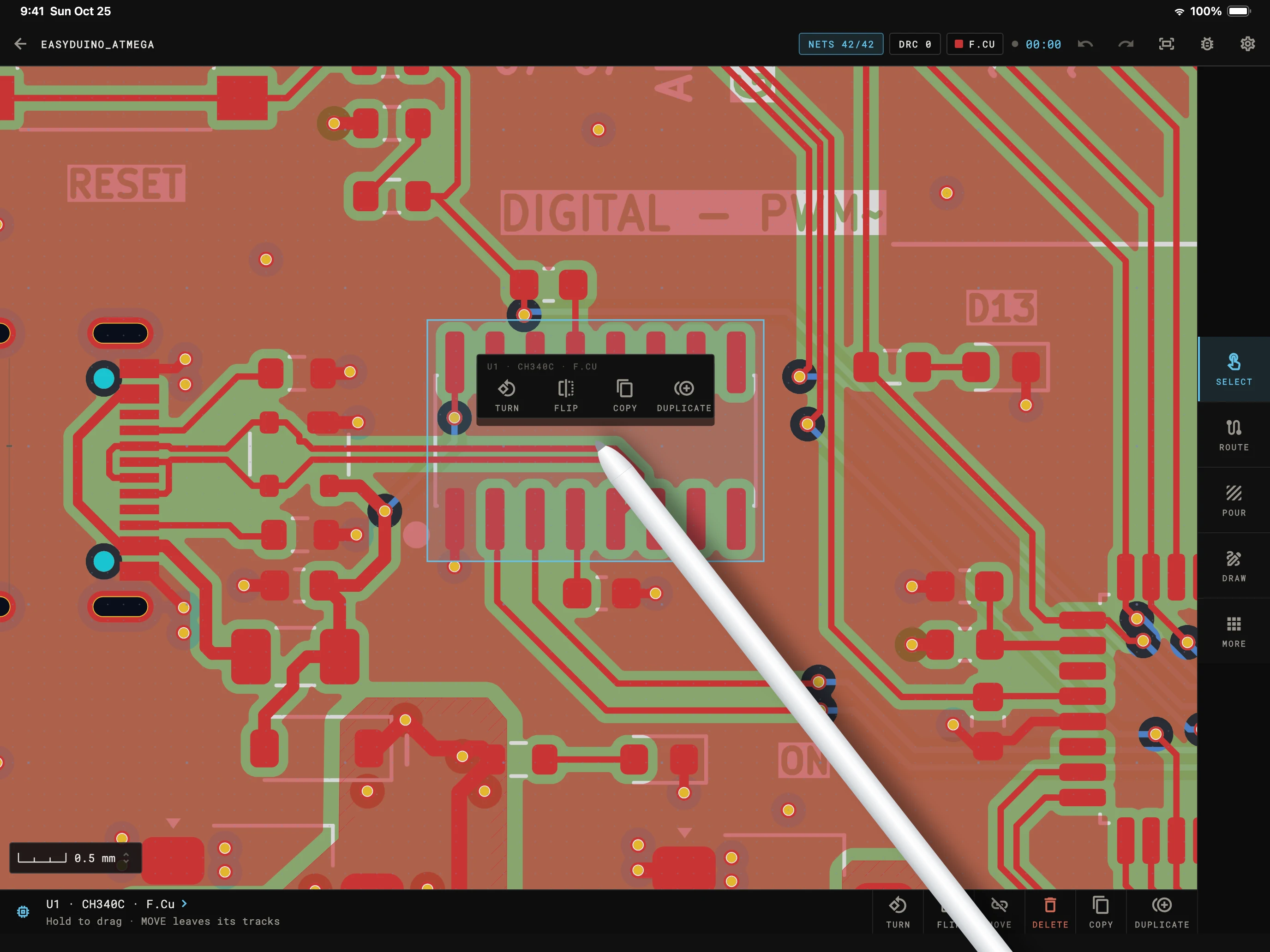
Squeezed: that part's keys, at the tip.
A tap takes the pad, track or pin under the tip, without the larger touch target a finger needs.
Hovering outlines the item under the tip and names it in a label at the tip, before the Pencil touches the glass.
Put the tip down and drag: the item moves, or bare board draws a selection box. Fingers keep panning and zooming.
Squeeze an Apple Pencil Pro for the tools at the tip. Double-tap for the last tool or undo, as you choose in Settings.
Rule checks
The electrical rules check reads the schematic the way KiCad does: unconnected pins, undriven power, conflicting labels, with your project’s own severities and exclusions. On the board, the design rule check runs in the background while you edit, so a clearance problem shows up as you make it.
Tap a finding to see it on the board. Exclude one or change a rule’s severity, and it’s saved where KiCad keeps it.
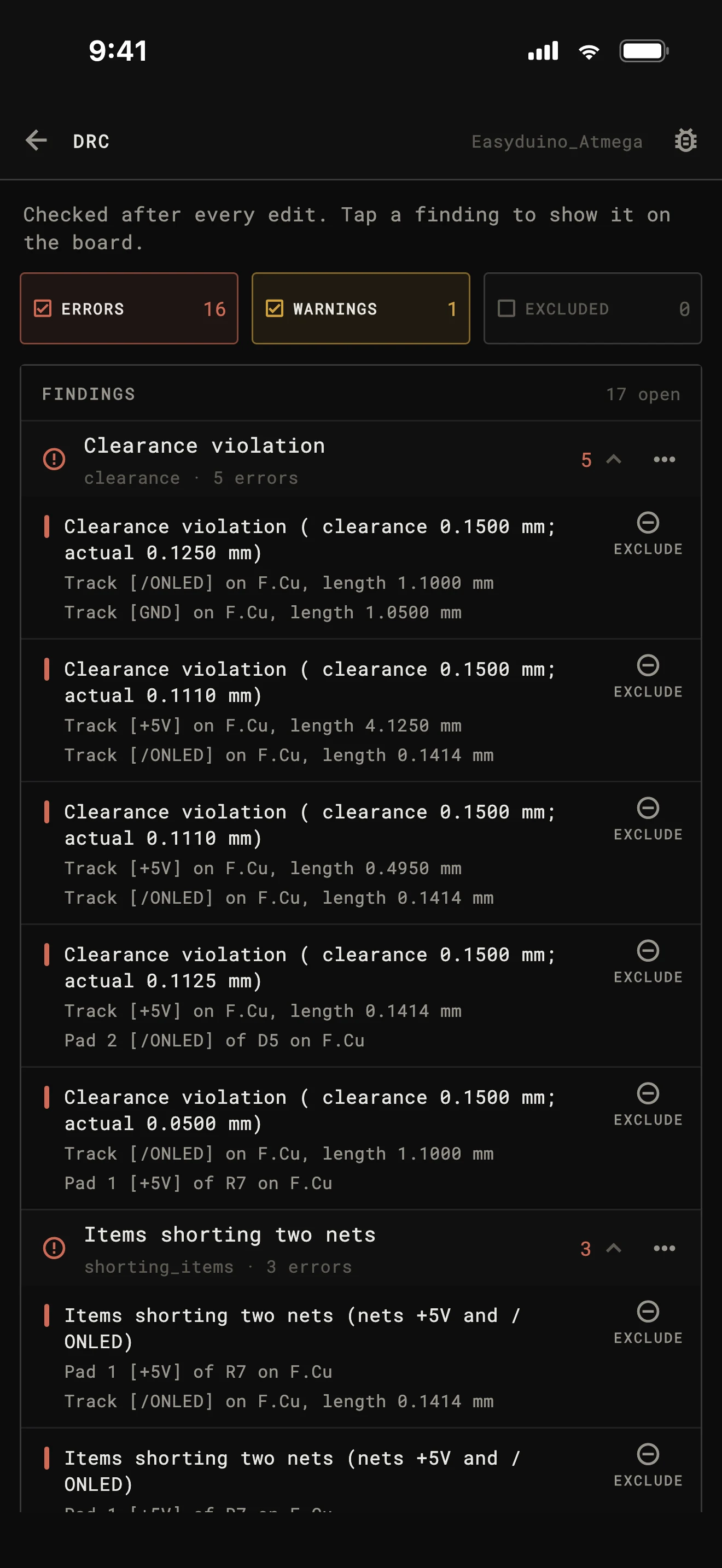
A resistor dropped onto the LED beside it, and what the check finds.
Each check scored against kicad-cli, finding for finding, on real open-source projects.
Parts and libraries
KiCad’s standard libraries come with the app: 22,860 symbols and 15,450 footprints in about 10 MB, so the part picker works without a connection.
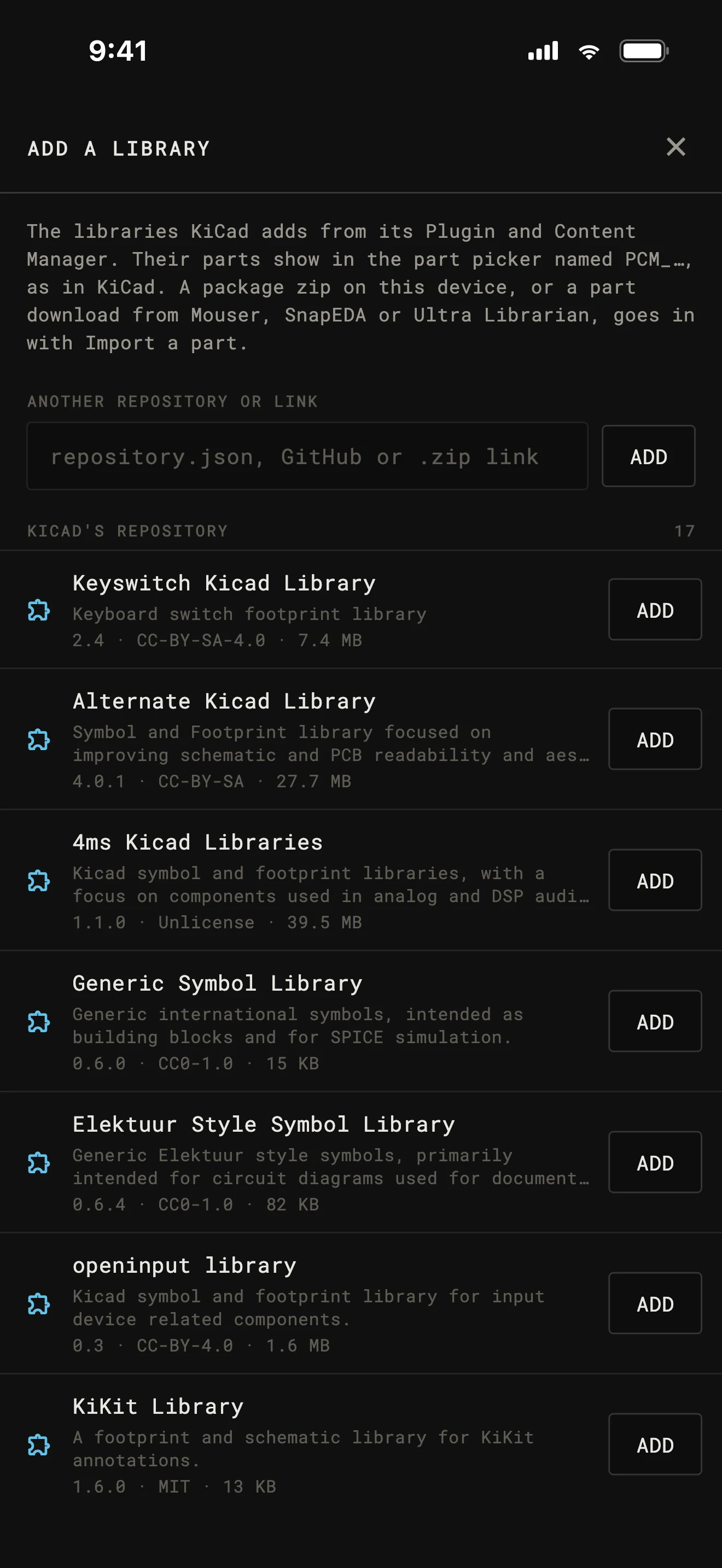
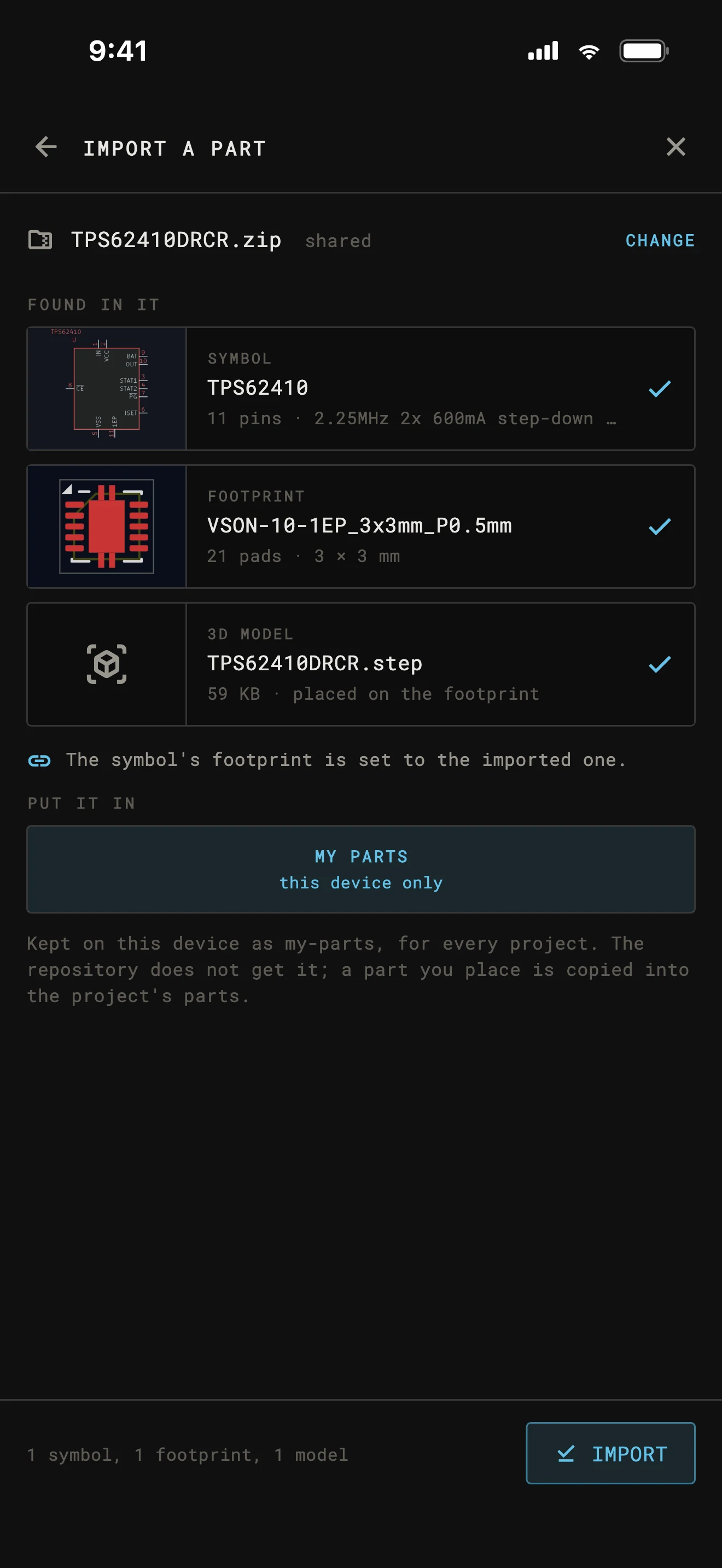
The libraries in KiCad’s Plugin and Content Manager install here too, from KiCad’s repository, another one, a GitHub release or a zip, and show in the part picker under the same names as in KiCad. A part downloaded from Mouser, SnapEDA or Ultra Librarian imports with its symbol, footprint and 3D model.
Anything else, make: the symbol and footprint editors have pin tables, pads and padstacks, generators for common packages, and a symbol and footprint from a datasheet’s pin table.
Opening projects
The editor works on your files where they are, and keeps nothing on a server.
Anywhere the Files app reaches: iCloud Drive, On My iPad, a folder another app syncs. On Android, any folder the system picker opens. The editor saves back into it.
Share a zip to the app, or open it with the app in Files. A zipped project unzips into a new design, a part download goes to the importer, and a KiCad add-on installs.
Clone from GitHub, GitLab (self-hosted too), Gitea, Forgejo or Codeberg, private repositories included. A new design can start its own repository.
Fabrication
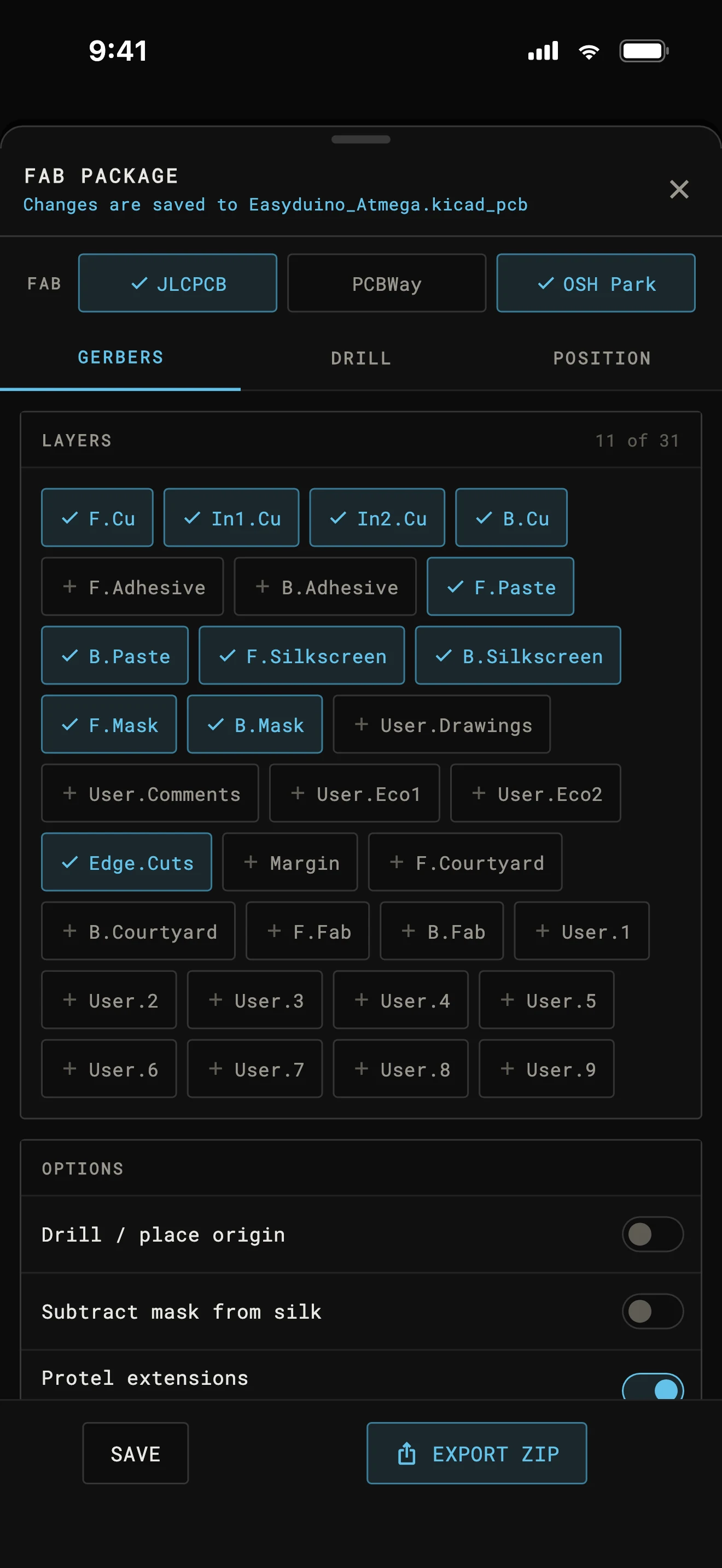
Export the fab package: Gerbers, drill files, the BOM and the position file in one zip, ready to upload. The JLCPCB, PCBWay and OSH Park presets set what each one’s guide asks for, or set every option yourself.
The files are checked against kicad-cli’s: drill and position files line for line, the BOM byte for byte, and copper Gerbers 99.9 % the same, pixel for pixel.
3D and AR
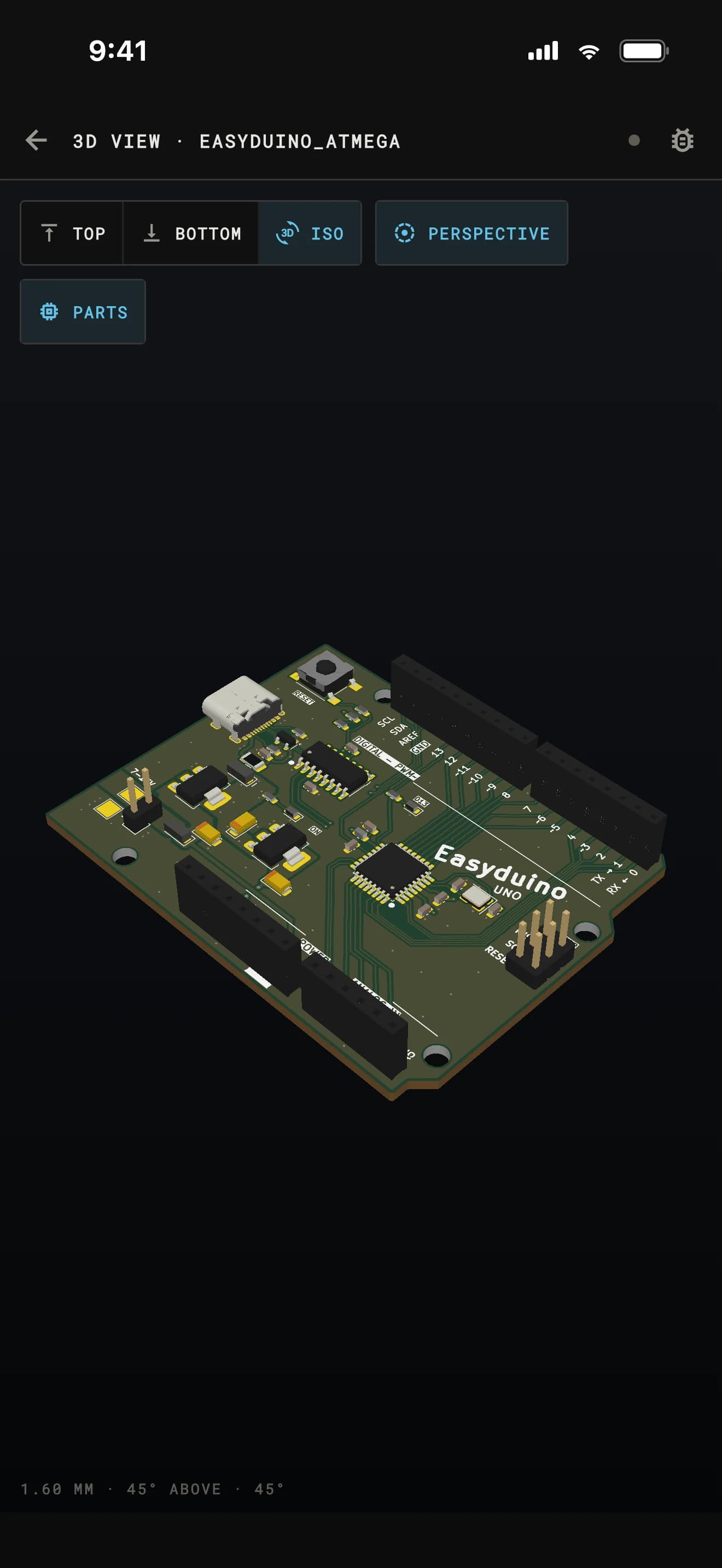
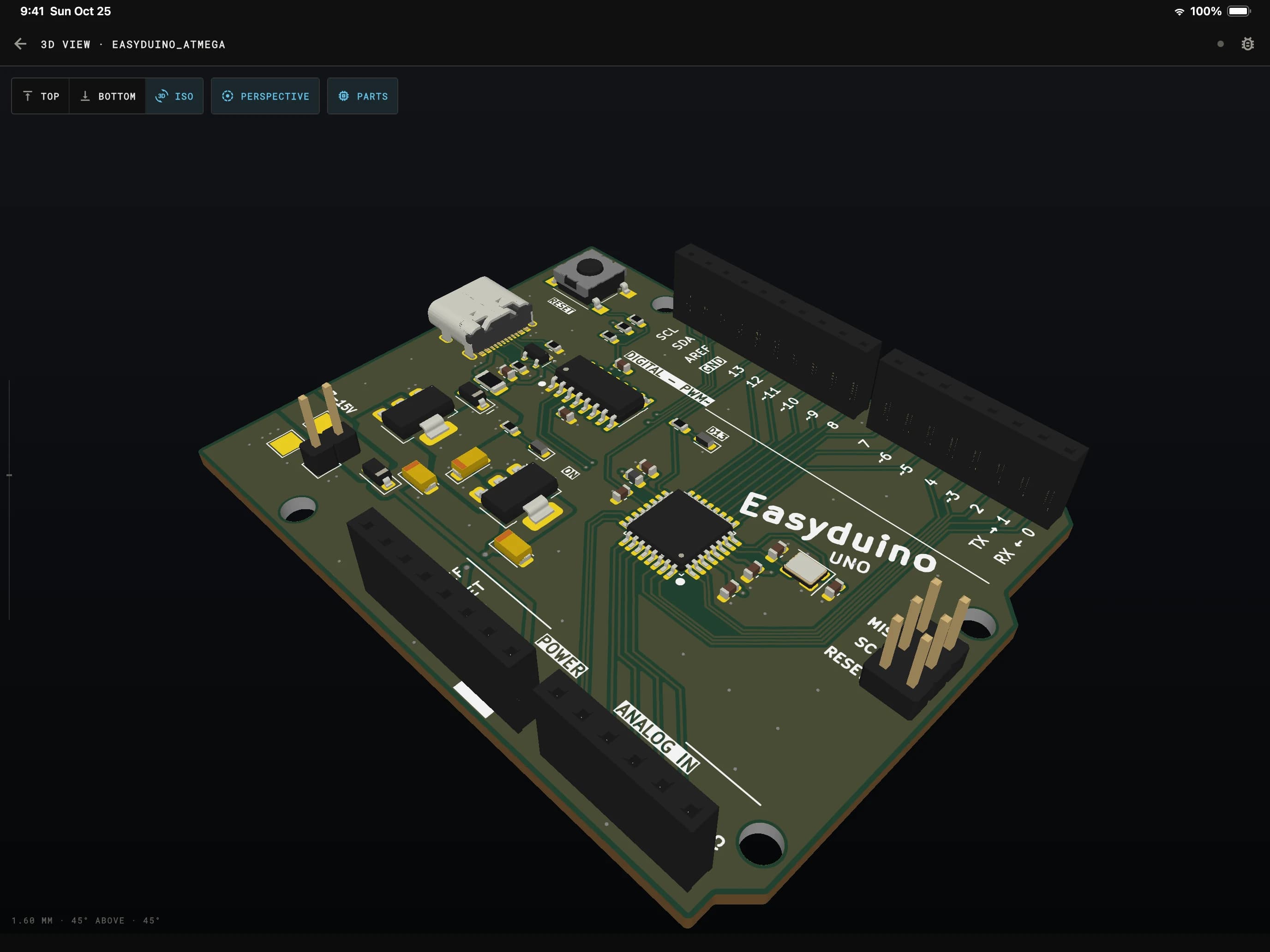
Every part is drawn as its KiCad 3D model, downloaded the first time a board needs it (a few hundred kilobytes for a typical board) and kept for next time. Turn the board, view it from either side or in perspective, and tap a part to find it on the schematic. AR puts the board on your desk at its real size.
Source control
Clone a repository from GitHub, GitLab, Gitea, Forgejo or Codeberg and edit your copy. Commit and push when you’re done, pull the latest, switch or start a branch. There is no git to install and no terminal.
History lists the commits that touched the project; tap one to see what it changed on the board and the schematic. If someone pushed first, your work goes to a new branch with a pull request, never over theirs.
Made for touch
Each editor was designed for a finger first and checked at phone and tablet sizes, upright and on its side.
Placing, dragging and routing show a magnified view of what's under your fingertip, so you can see the pin you're connecting to.
Controls are at least 44 points, and picks reach past thin tracks and small pads to the thing you meant.
Pin the tools you use most to the tool keys. Every key strip fits the screen without scrolling sideways.
Picks, drops and finished operations each have their own haptic, so you can tell what happened without looking.
Tap two fingers to undo and three to redo, on iPad and on phones. Turn it off in Settings if you prefer the keys.
Millimeters, mils or inches in both editors, KiCad's grid sizes and your own, and the per-item grids KiCad keeps.
Plans
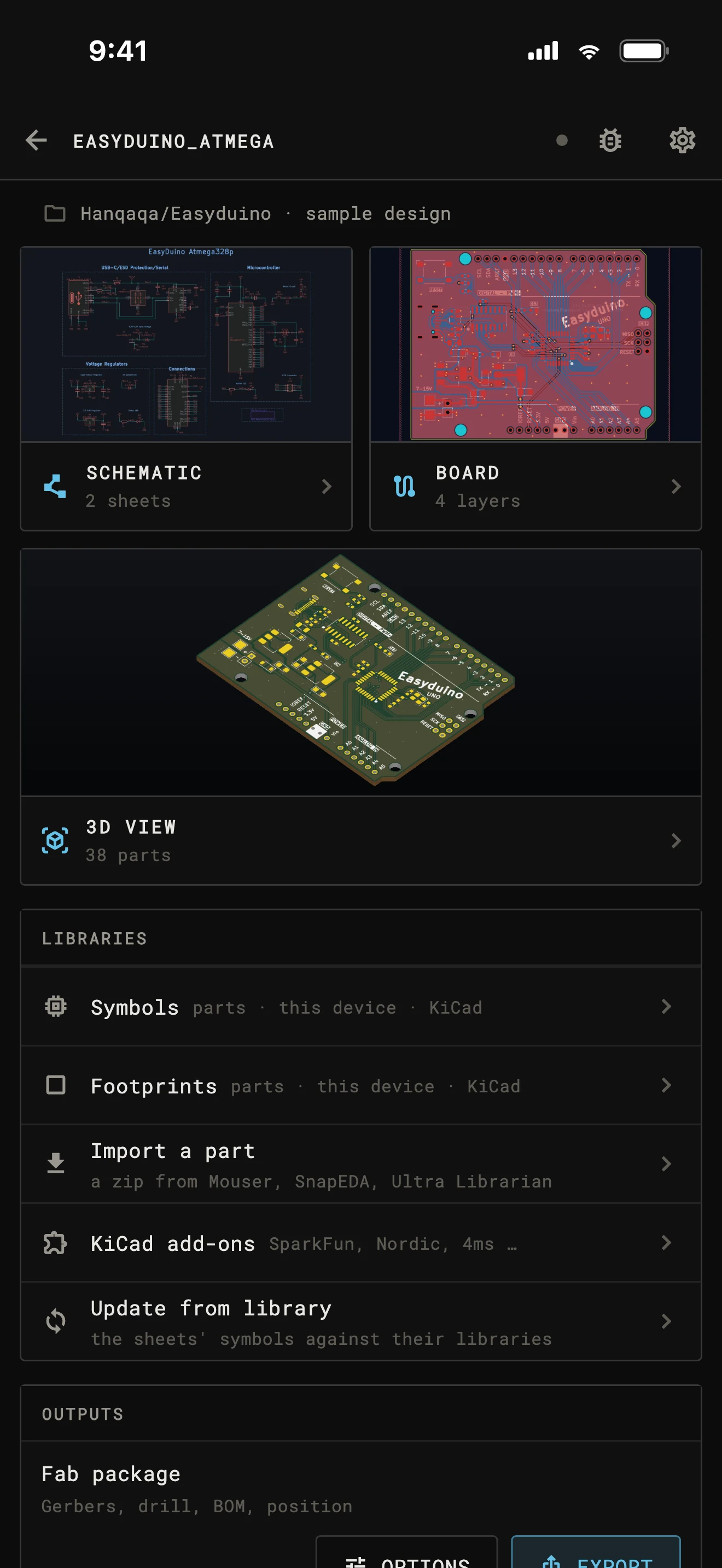
The app is free to download, and its two sample designs, an Arduino-style board and a blank one, work with every feature. Your own designs need KiCad Editor Pro, monthly or yearly, with a 3-day free trial.
Prices are on the App Store and Google Play listings.
| Feature | Free | Pro |
|---|---|---|
| The Easyduino UNO and blank sample designs, every feature | ✓ | ✓ |
| KiCad's libraries and add-ons, My parts | ✓ | ✓ |
| Your own projects, folders, zips and repositories | — | ✓ |
| Exports, commits and pushes from your designs | — | ✓ |
Viewer or Editor
KiCad Viewer is for reading a design at the bench or in a review. KiCad Editor draws a project the same way, opens the same folders and repositories, and adds everything that changes a design.
| Feature | Viewer | Editor |
|---|---|---|
| Schematic, board and BOM, cross-probed | ✓ | ✓ |
| 3D board view | Bare board | With parts |
| Pull request review | ✓ | Per design |
| Edit schematics and boards | — | ✓ |
| ERC and DRC | — | ✓ |
| Gerbers, drill, BOM, position files, PDFs | — | ✓ |
| Symbol and footprint editors, KiCad add-ons | — | ✓ |
| Commit and push | — | ✓ |
| KiCad 5 projects | ✓ | — |
Questions
What it opens, what it writes, what it doesn’t do, and what happens to your files.
iPhone, iPad, and Android phones and tablets. Every screen is laid out for phones and tablets, upright or on its side.
Yes. The editor writes .kicad_sch, .kicad_pcb, .kicad_pro and library files in KiCad's own format, the way KiCad itself writes them, and its edits are checked against recordings of KiCad making the same edits. Open the project in KiCad and carry on where you left off.
KiCad 8, 9 and 10 projects open for editing and keep the file format they were saved in, so the KiCad that made them still opens them. KiCad 10's own features (hatched fills, rounded corners, design variants and barcodes) need its format, so a KiCad 8 or 9 project upgrades to KiCad 10's when you choose, from its design page. KiCad 6 and 7 projects open read-only: you can look at them, check them and make their outputs, and one tap upgrades them to KiCad 10's format so you can edit them. Either upgrade keeps a copy of the old files. KiCad 5 projects (.pro and .sch files) open in KiCad Viewer; to edit one, open and save it in a newer KiCad first.
Yes, on iPad. The Pencil picks exactly what's under its tip, outlines and names what it would pick while it hovers, and drags without the hold a finger needs. Squeeze an Apple Pencil Pro for the tools at the tip. If you turn on the iPad's Only Draw with Apple Pencil, fingers pan and zoom and only the Pencil edits; the editor has its own setting for it too.
Yes. Install libraries from KiCad's add-on repository (the ones KiCad's Plugin and Content Manager lists), from another repository, a GitHub release or a zip. A part downloaded from Mouser, SnapEDA or Ultra Librarian imports with its symbol, footprint and 3D model. Or make the part in the symbol and footprint editors, from package generators or a datasheet's pin table.
Open the project folder anywhere the Files app reaches, such as iCloud Drive or a folder another app syncs; on Android, pick it with the system file picker. The editor saves into that folder. You can also share a zip of the project to the app, which unzips it as a new design, or clone it from GitHub, GitLab, Gitea, Forgejo or Codeberg.
No. Routing is interactive: walk around, push and shove, or free angle, with differential pairs and length tuning. There is no Specctra export for an external autorouter.
Both. The electrical rules check finds the problems KiCad's finds on the schematics we measured it on, and reads your project's severities and exclusions. The design rule check runs in the background as you edit the board and reads your custom rules. Update PCB from Schematic lists every difference between the schematic and the board, in KiCad's own words, before it changes anything.
No. KiCad Editor edits KiCad projects only, and it has no SPICE simulator.
No. KiCad's symbol and footprint libraries are part of the app, so placing parts works anywhere. The 3D view downloads KiCad's standard 3D models the first time a board needs them and keeps them. Installing an add-on and syncing with a repository need a connection.
Only where you send it. Projects are opened and edited on the device. They go to your git host when you push, to the system's AR viewer as a 3D model when you use AR, and to us only if you attach a design to a bug report. The 3D view downloads KiCad's standard part models by name; nothing of your design is uploaded for it.
KiCad Editor is free to download, and the two sample designs work with every feature, so you can try everything first. Editing your own designs needs KiCad Editor Pro, a monthly or yearly subscription with a 3-day free trial. Prices are on the App Store and Google Play listings.
No, they are separate apps. KiCad Viewer is for looking at a design and opens KiCad 5 projects too. KiCad Editor shows a project the same way and adds everything that changes it.
No. KiCad Editor is its own implementation, measured against KiCad's command-line tools on real open-source projects: the files it writes, the rule checks, the zone fill, the Gerbers, drill files and BOM. KiCad's standard libraries and 3D models are used under their Creative Commons license (CC BY-SA 4.0). If something doesn't match KiCad, please tell us at hello@kicadeditor.com.
No. KiCad Editor is not affiliated with, endorsed by, or sponsored by the KiCad project or its maintainers.
Get the app
Download it, open the sample design and route a track. Your own projects open with KiCad Editor Pro.
 KiCad Editor